一、機能紹介
ローカル開発環境におけるいくつかの問題を解決するために、Web版のVisual Studio Codeを使用することができます。例えば:
- 環境差異の問題:Windows、Mac、Linuxの三大プラットフォームには様々な差異がありますが、開発プラットフォームを統一することでこの差異を解消できます。
- 依存関係の問題:1台の開発マシンで環境を設定した後、他のマシンを再度設定する必要がなく、新しいマシンから直接アクセスして使用できます。
ここではWeb版のVisual Studio Codeを選択します。なぜなら、どのプラットフォームでも使用できるため汎用性が高く、また比較的シンプルだからです。
二、操作手順
-
Visual Studio Code Web Serverのダウンロード
wget -O vscode-web-server.tar.gz https://update.code.visualstudio.com/latest/server-linux-x64-web/stable tar -xvf vscode-web-server.tar.gz cd vscode-server-linux-x64-web -
起動ファイルの作成
vi server.sh以下の内容を入力して保存:
#!/usr/bin/env sh
#
# Copyright (c) Microsoft Corporation. All rights reserved.
#

ROOT="$(dirname "$0")"

"$ROOT/node" ${INSPECT:-} "$ROOT/out/server-main.js" --compatibility=1.63 "$@"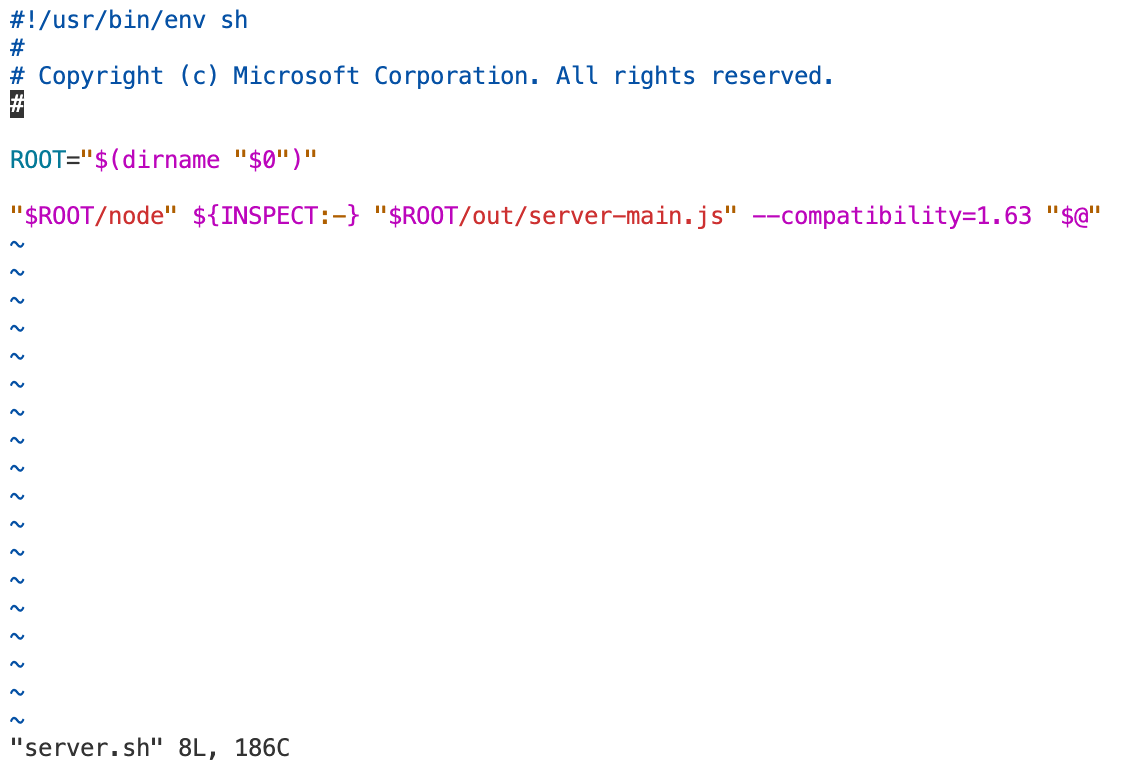
-
サービスの起動
ここではnohupを使用してバックグラウンドで実行するようにし、端末が切断されても終了しないようにします。
--hostと--portでバインドするIPとポートを変更できます。指定しない場合、デフォルトはlocalhost:8080です。--accept-server-license-termsはライセンス契約にデフォルトで同意することを意味します。--without-connection-tokenは接続トークンが不要であることを示します。nohup server.sh --accept-server-license-terms >> vscode.log 2>&1 & -
ログファイルを確認してアクセストークンを取得
cat vscode.log以下のような内容が表示されます:
server.sh is being replaced by 'bin/code-server'. Please migrate to the new command and adopt the following new default behaviors:
* connection token is mandatory unless --without-connection-token is used
* host defaults to `localhost`
*
* Visual Studio Code Server
*
* By using the software, you agree to
* the Visual Studio Code Server License Terms (https://aka.ms/vscode-server-license) and
* the Microsoft Privacy Statement (https://privacy.microsoft.com/en-US/privacystatement).
*
Server bound to :::8000 (IPv6)
Extension host agent listening on 8000

Breaking change in the next release: Please use one of the following arguments: '--connection-token', '--connection-token-file' or '--without-connection-token'.
Web UI available at http://localhost:8000/?tkn=xxxxxxx-xxxx-xxxx-xxxx-xxxxxxxxxx
[05:25:33] Extension host agent started.
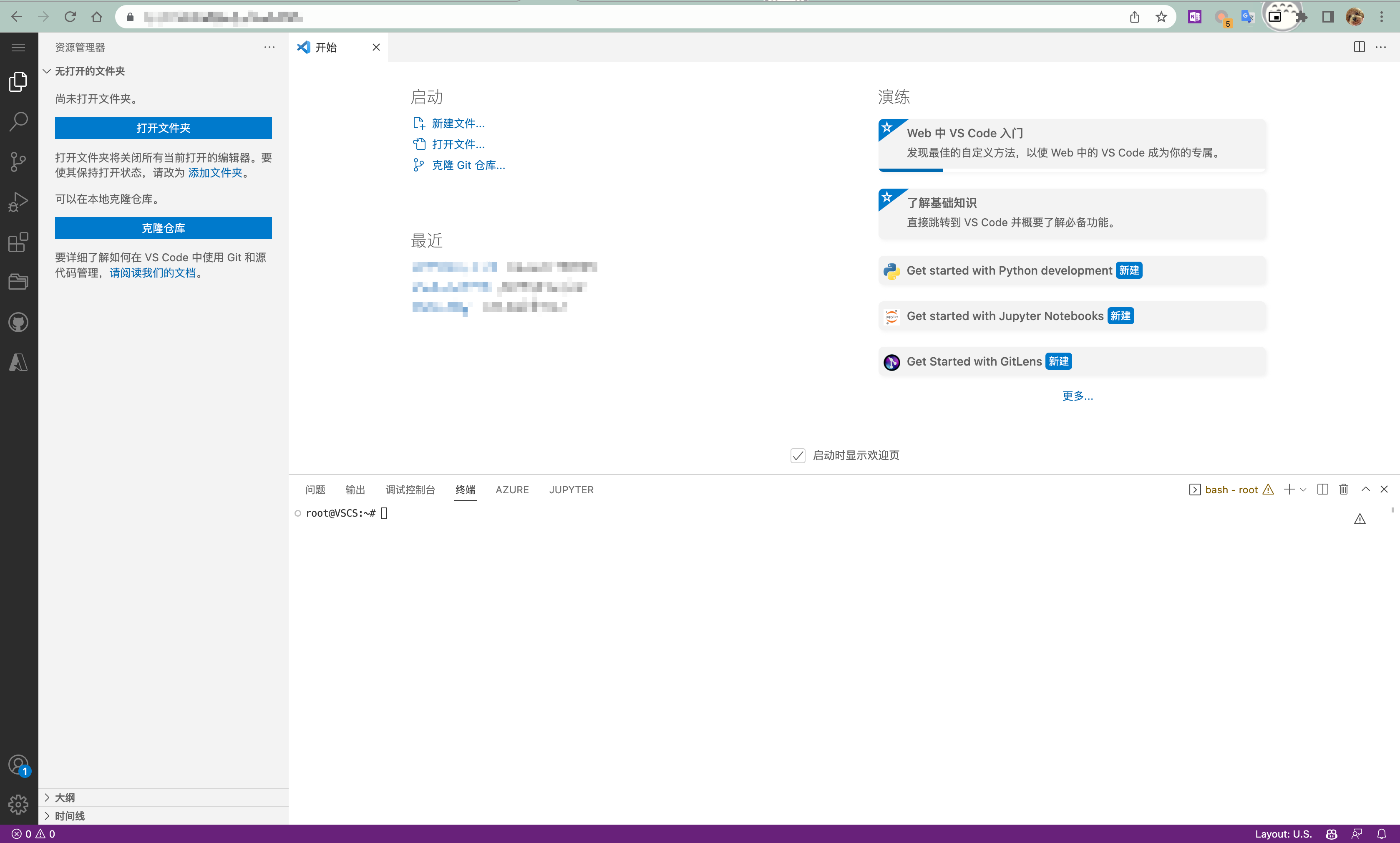
アドレス http://localhost:8000/?tkn=xxxxxxx-xxxx-xxxx-xxxx-xxxxxxxxxx をブラウザにコピーし、localhostをサーバーのIPに変更してアクセスできます。
三、FAQ
質問1:設定後もアクセスできない場合はどうすればよいですか? 回答1:クライアントとサーバー間のネットワーク接続が正常か確認してください。正常な場合は、ファイアウォールが指定されたポートへのアクセスを許可しているか確認してください。