一、功能介紹
為了解決本地開發環境的一些問題,我們可以通過使用 Web 版本的 Visual Studio Code 來解決,比如:
- 環境差異問題:例如 Windows、Mac、Linux 三大平台都有各種各樣的差異,統一開發平台後就解決了這種差異。
- 依賴問題:在一台開發機器上配置環境後,無需再去配置另一台機器,新機器可以直接訪問使用。
這裡我們選擇使用 Web 版本的 Visual Studio Code,因為它比較通用,可以在任何平台上使用,而且比較簡單。
二、操作流程
-
下載 Visual Studio Code Web Server
wget -O vscode-web-server.tar.gz https://update.code.visualstudio.com/latest/server-linux-x64-web/stable tar -xvf vscode-web-server.tar.gz cd vscode-server-linux-x64-web -
創建啟動文件
vi server.sh輸入以下內容並保存:
#!/usr/bin/env sh
#
# Copyright (c) Microsoft Corporation. All rights reserved.
#

ROOT="$(dirname "$0")"

"$ROOT/node" ${INSPECT:-} "$ROOT/out/server-main.js" --compatibility=1.63 "$@"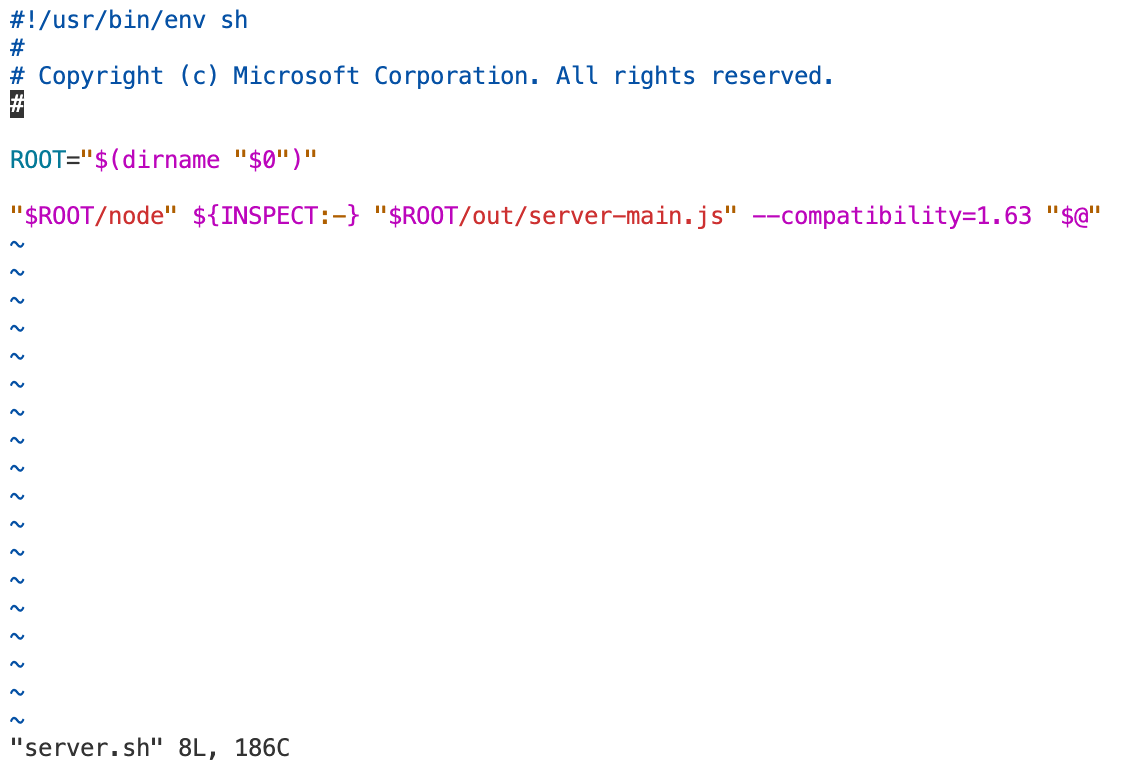
-
啟動服務
這裡我們通過nohup使其可以在後台運行,這樣就不會因為終端斷開而退出了。 通過
--host和--port可以改變綁定的 ip 和端口,如果不指定,預設是localhost:8080。--accept-server-license-terms是預設同意許可協議。--without-connection-token是不需要連接 token。nohup server.sh --accept-server-license-terms >> vscode.log 2>&1 & -
查看日誌文件獲取訪問Token
cat vscode.log可以看到如下內容:
server.sh is being replaced by 'bin/code-server'. Please migrate to the new command and adopt the following new default behaviors:
* connection token is mandatory unless --without-connection-token is used
* host defaults to `localhost`
*
* Visual Studio Code Server
*
* By using the software, you agree to
* the Visual Studio Code Server License Terms (https://aka.ms/vscode-server-license) and
* the Microsoft Privacy Statement (https://privacy.microsoft.com/en-US/privacystatement).
*
Server bound to :::8000 (IPv6)
Extension host agent listening on 8000

Breaking change in the next release: Please use one of the following arguments: '--connection-token', '--connection-token-file' or '--without-connection-token'.
Web UI available at http://localhost:8000/?tkn=xxxxxxx-xxxx-xxxx-xxxx-xxxxxxxxxx
[05:25:33] Extension host agent started.
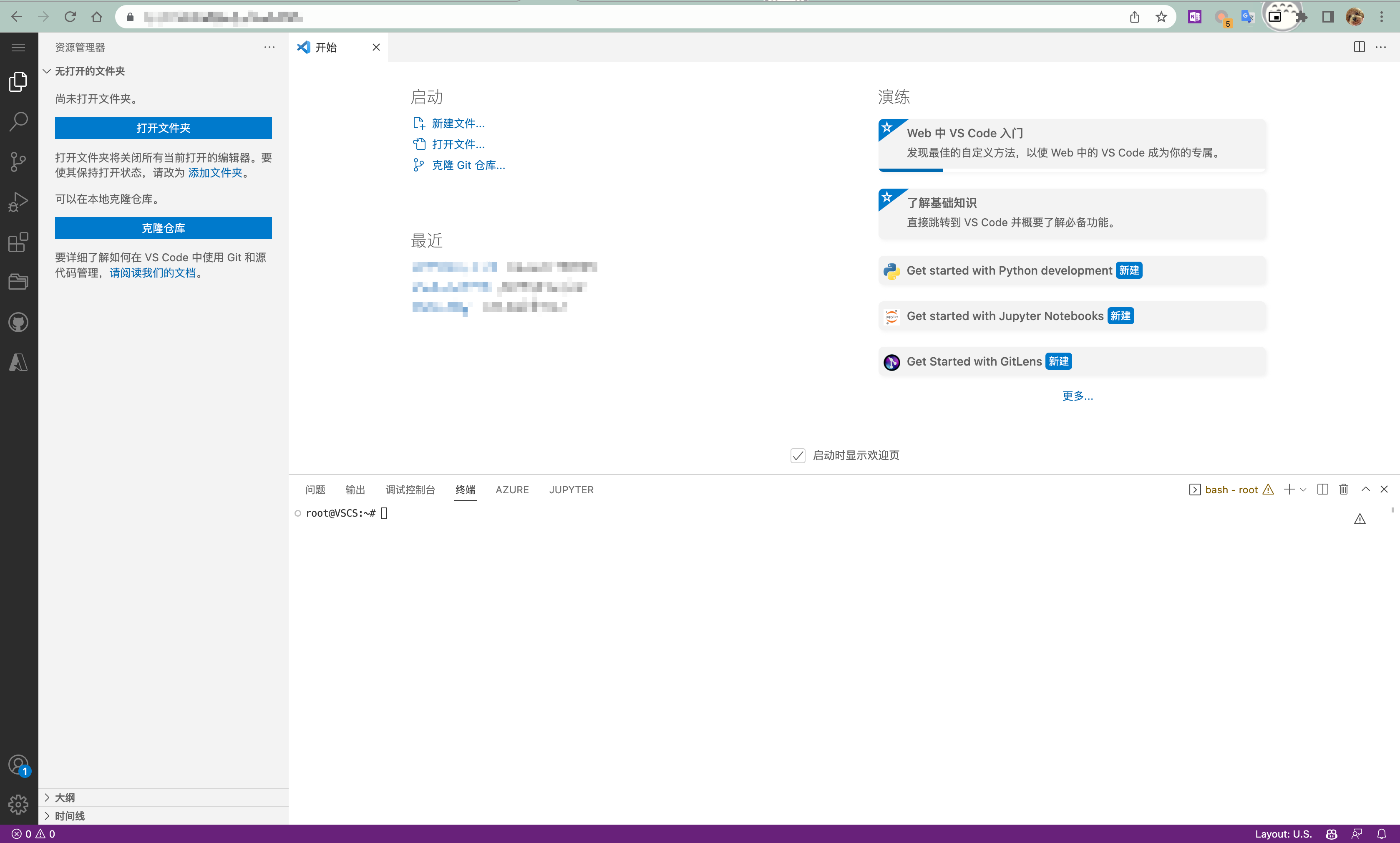
將地址 http://localhost:8000/?tkn=xxxxxxx-xxxx-xxxx-xxxx-xxxxxxxxxx 複製進您的瀏覽器中,localhost 改為伺服器 IP 就可以訪問了。
三、FAQ
問題1:配置後依舊無法訪問怎麼辦? 回答1:檢查客戶端與伺服器的網路連接是否正常,如果正常,請檢查防火牆是否允許訪問指定的端口。