1. Symptoms
After upgrading to macOS Ventura, apps kept freezing over and over. Clicking any app just showed the loading indicator, and everything responded very slowly.
2. Solution
Update:
Download the one-click script Just download it, unzip it, and run it.
1. Temporary workarounds:
Method 1:
- Press command+Space, search for Terminal, and open it.
- Enter the following command and press Return.
kill -9 $(pgrep SCIM)
Method 2:
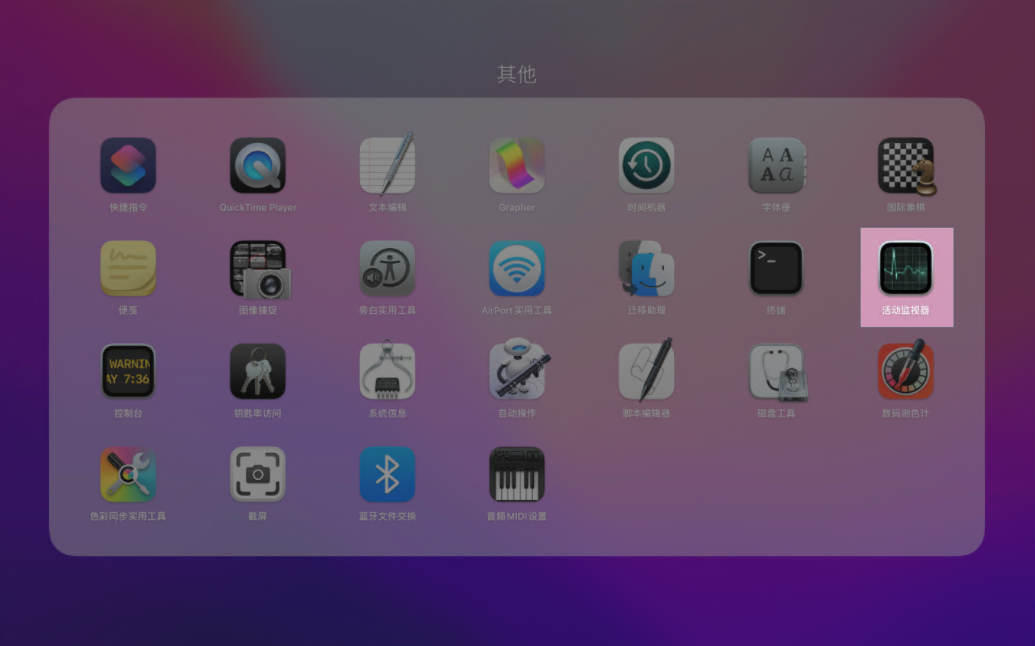
- Open Launchpad and click Other;

- In Other, click "Activity Monitor";
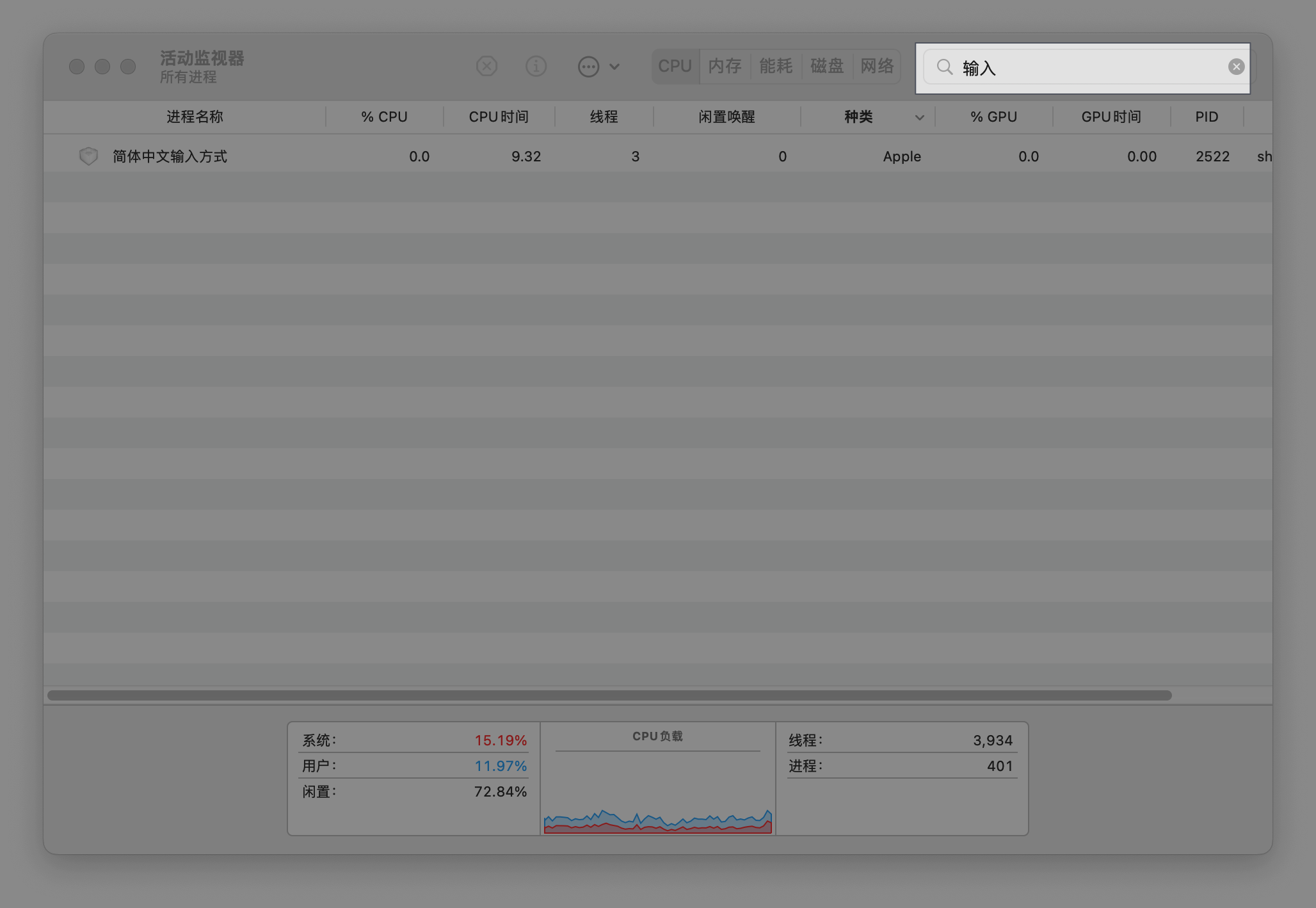
3. In the Activity Monitor window, type "输入" (input) in the search box, and the running input method processes will be shown;
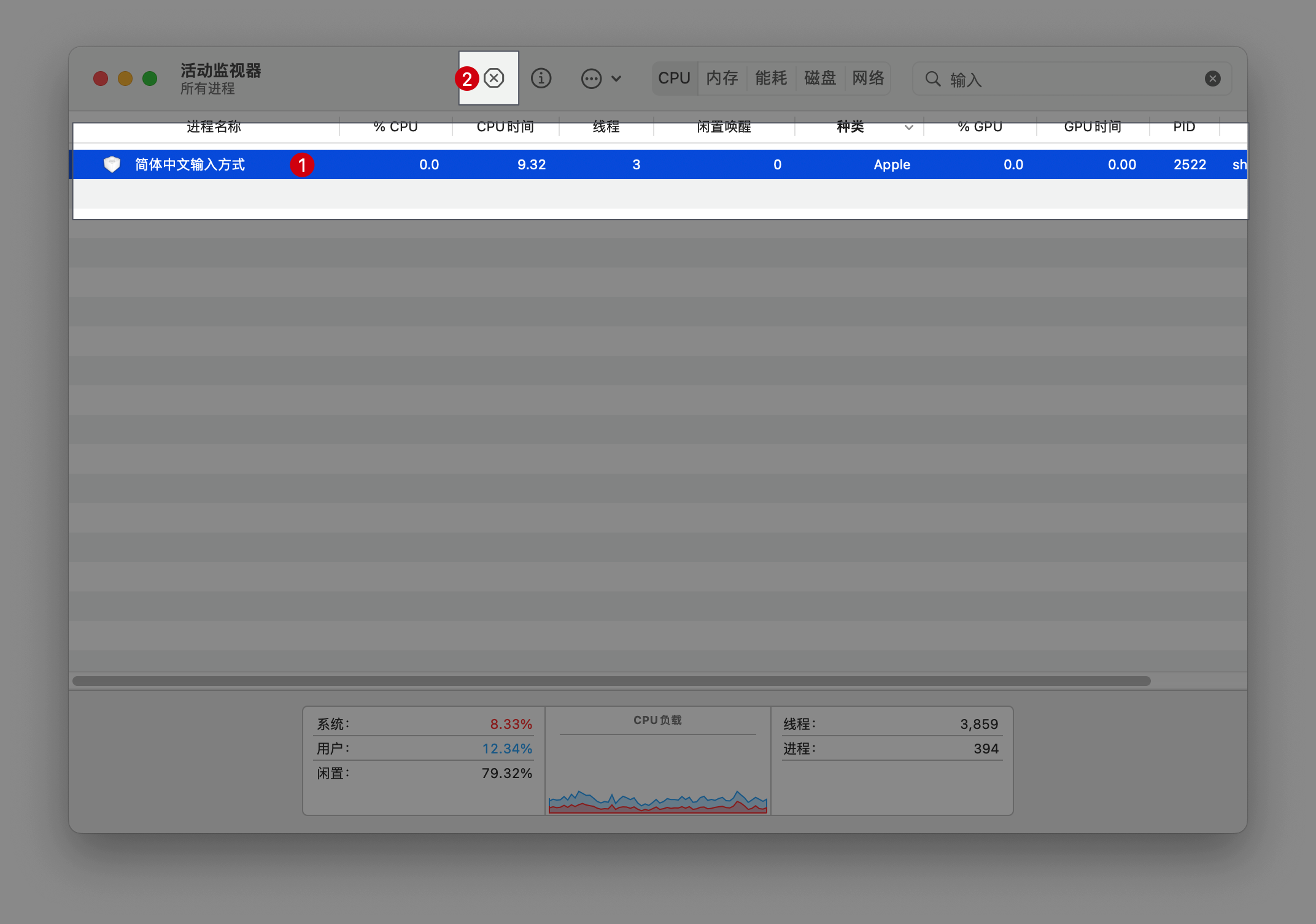
4. Select the input method process that appears, and click the "X" at the top to stop it.
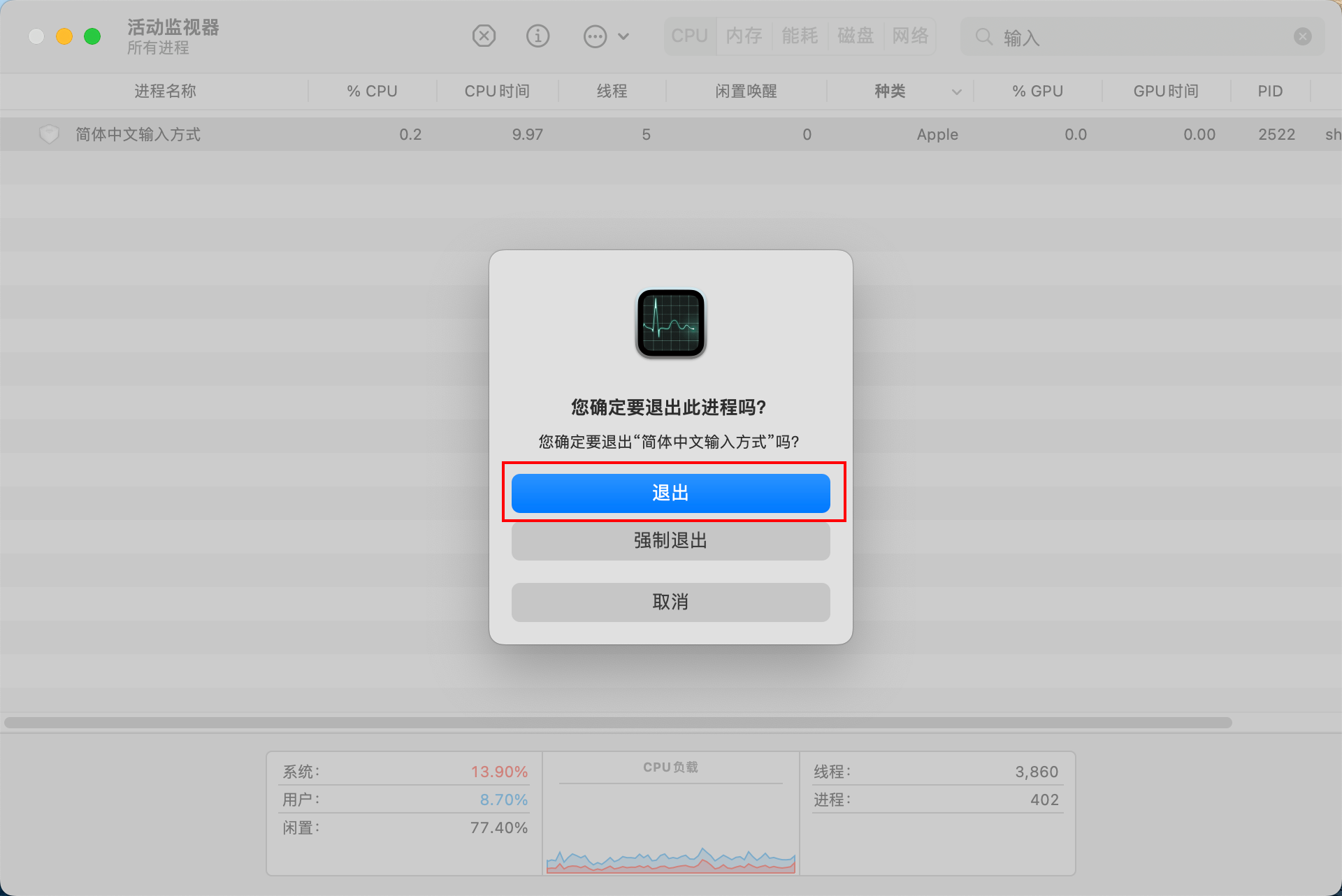
5. A prompt asking whether to quit the input method will pop up. Click the "Quit" button, and the problem is solved.
2. Run it automatically on a schedule
Usually, by the time things start lagging, the system freezes before we have a chance to run the command, so we use a scheduled task to solve this problem.
-
Press command+Space, search for Terminal, and open it.
-
Enter the following command and press Return
crontab -e
- Press the
ikey, then enter the following
0 */2 * * * kill -9 `pgrep SCIM`
0 */2 * * * kill -9 `pgrep Spotlight`
-
Press
esc, then type:wqand press Return. This saves the file and exits. -
You can enter
crontab -lto check that it was saved correctly. If it was, the input method and search processes will be restarted automatically every two hours, preventing the freezes.