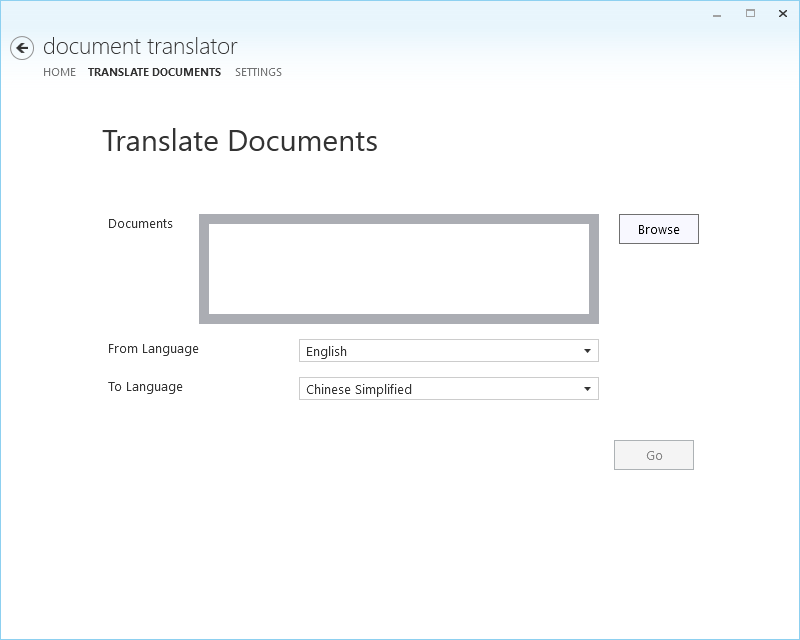
Not long ago, while reading a paper, I wondered whether there was a quick and convenient way to translate an entire paper into Chinese in one go.
While searching, I found that Microsoft offers a complete solution for this: https://www.microsoft.com/zh-cn/translator/doctranslator.aspx
Translate your files instantly with Microsoft Document Translator
- Translate your Word, PDF, PowerPoint, or Excel documents individually or in batches
- Translate about 650 pages of text per month for free into all 60 languages supported by Microsoft Translator
- Keep your document's original formatting
- Customize the open-source Document Translator to suit your needs
- Add standard categories to improve translation quality in the selected language for technical content or spoken-style text
- Document Translator can also use custom MT systems trained with Microsoft Translator Hub
Here's how to use it.
First, apply for the free Translator Text API. To apply for the API, you need a Microsoft Azure account.
Start by signing up for an Azure (global) account

Click "Start free" and enter your personal Microsoft account
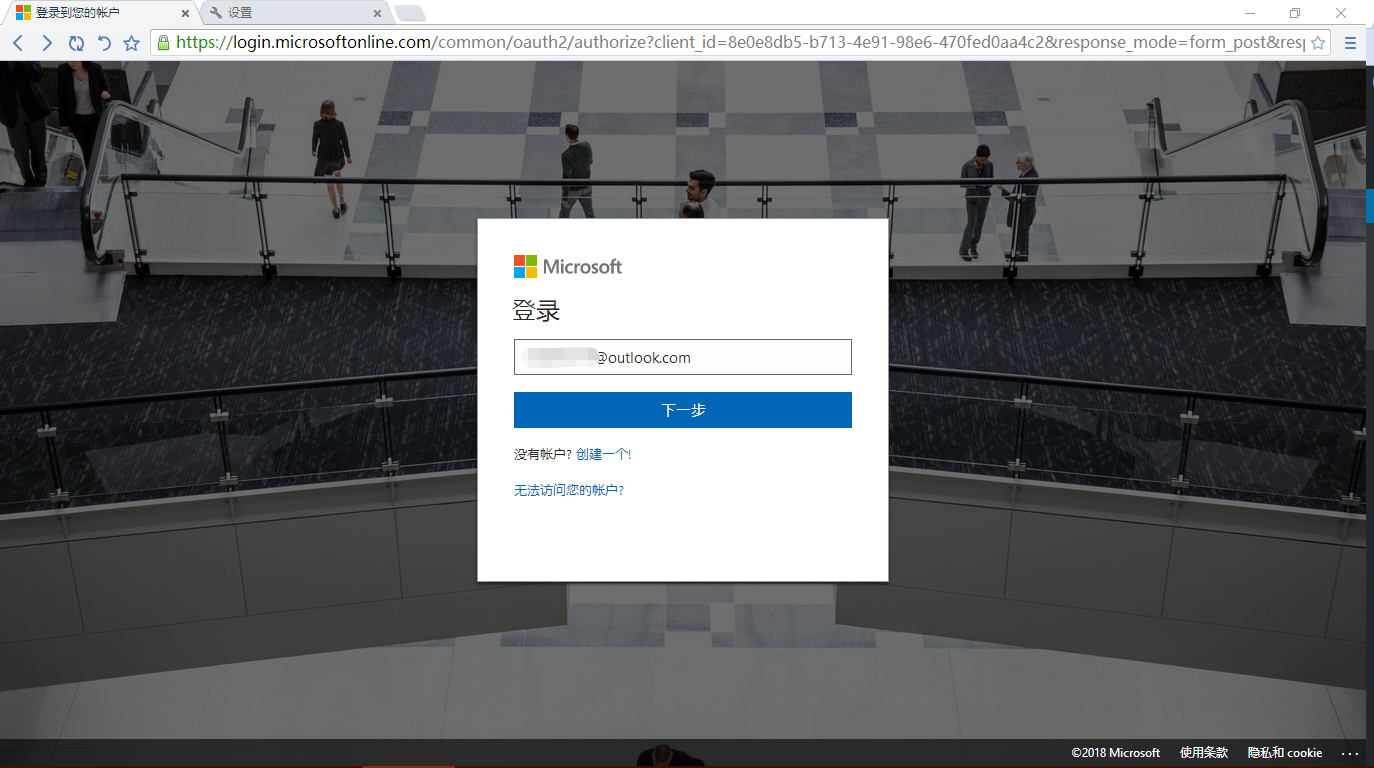
After signing in, you'll be taken to the Azure free account sign-up page
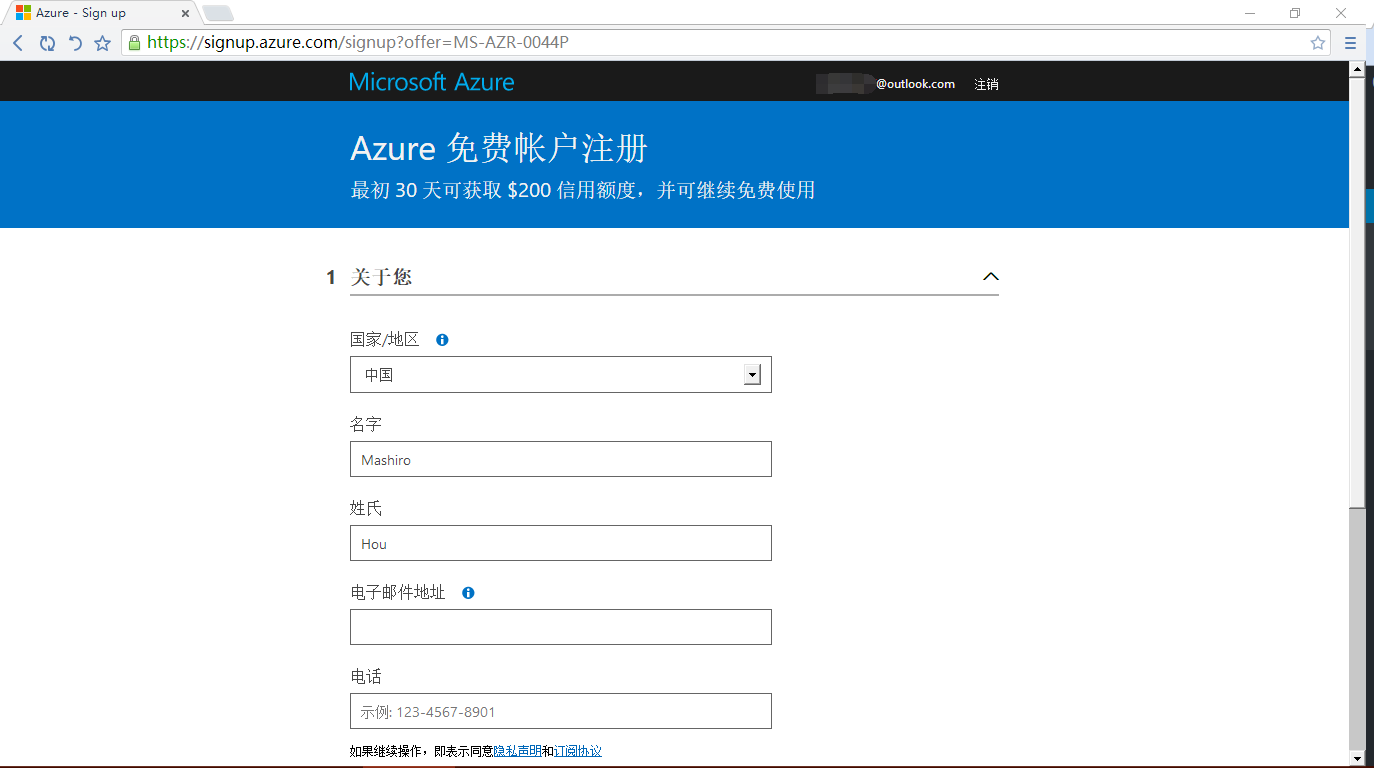
After filling in the information above, click "Next" to complete phone verification and credit card verification [your card won't be charged unless you explicitly upgrade to a paid service]
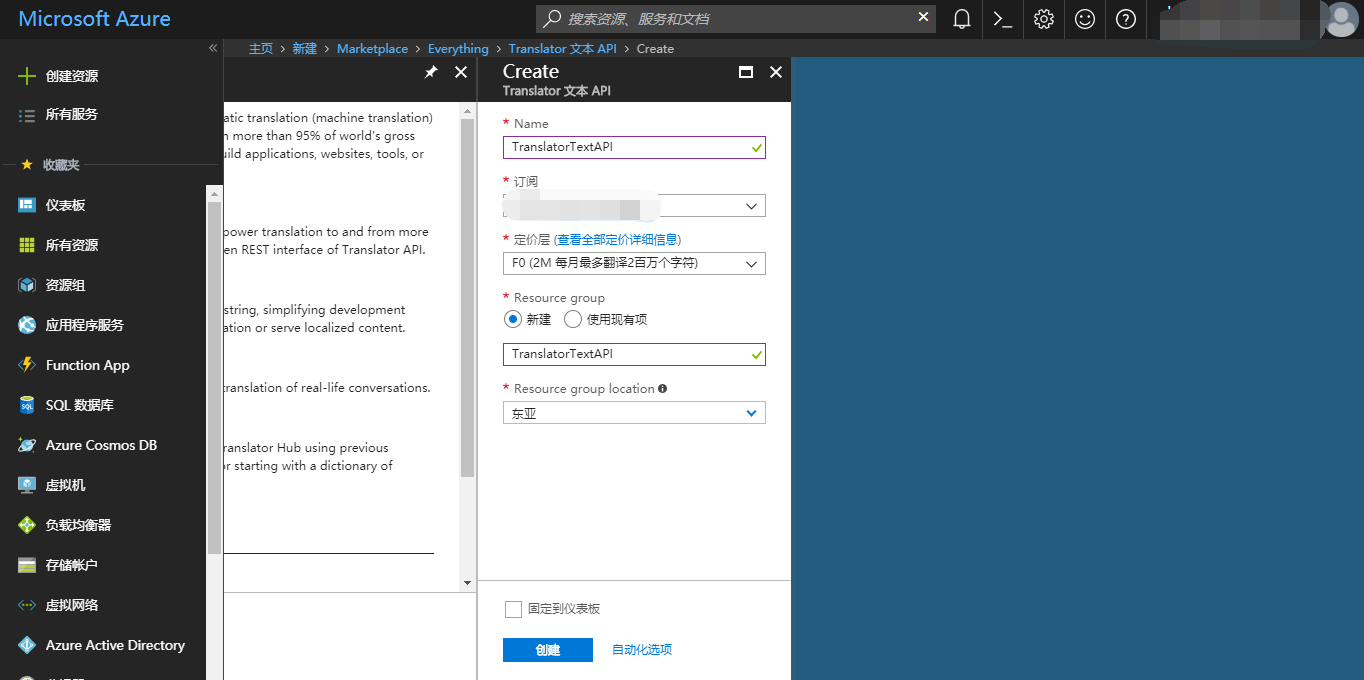
Once registration is complete, go to the portal, click "Create a resource", and search for "Translator Text API"
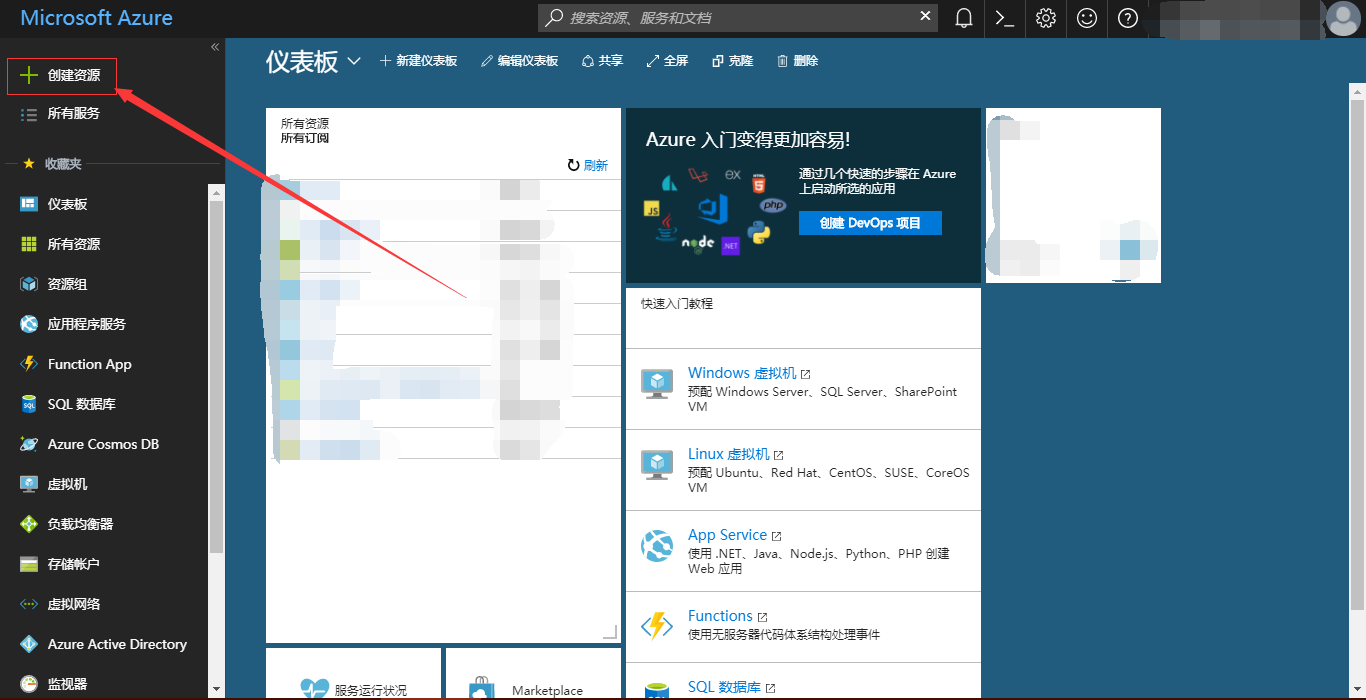

Fill in the resource name, subscription, pricing tier (F0 is free), resource group name, and resource group location, then click "Create"
While waiting for it to be created, download and install Microsoft Document Translator. Download link: https://github.com/MicrosoftTranslator/DocumentTranslator/releases
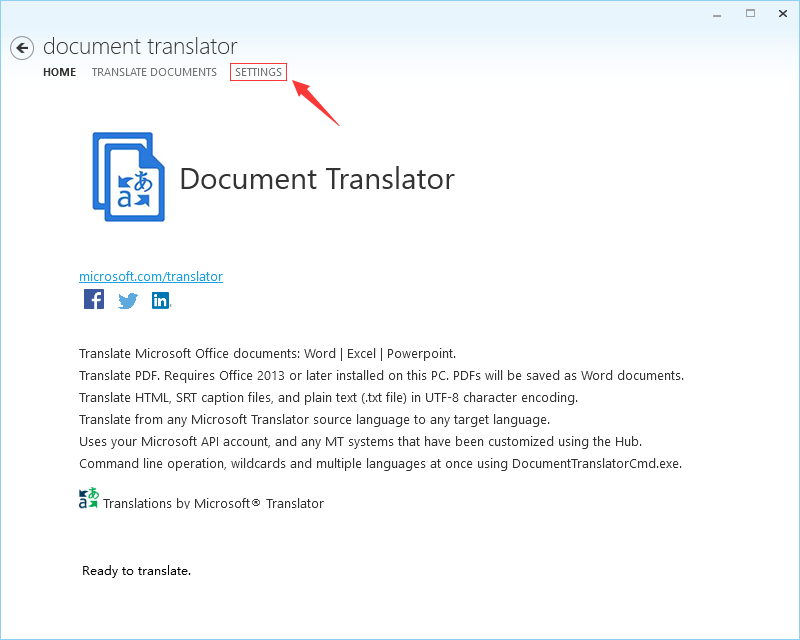
Double-click the downloaded MicrosoftDocumentTranslator.msi to install it, then run it and click SETTINGS
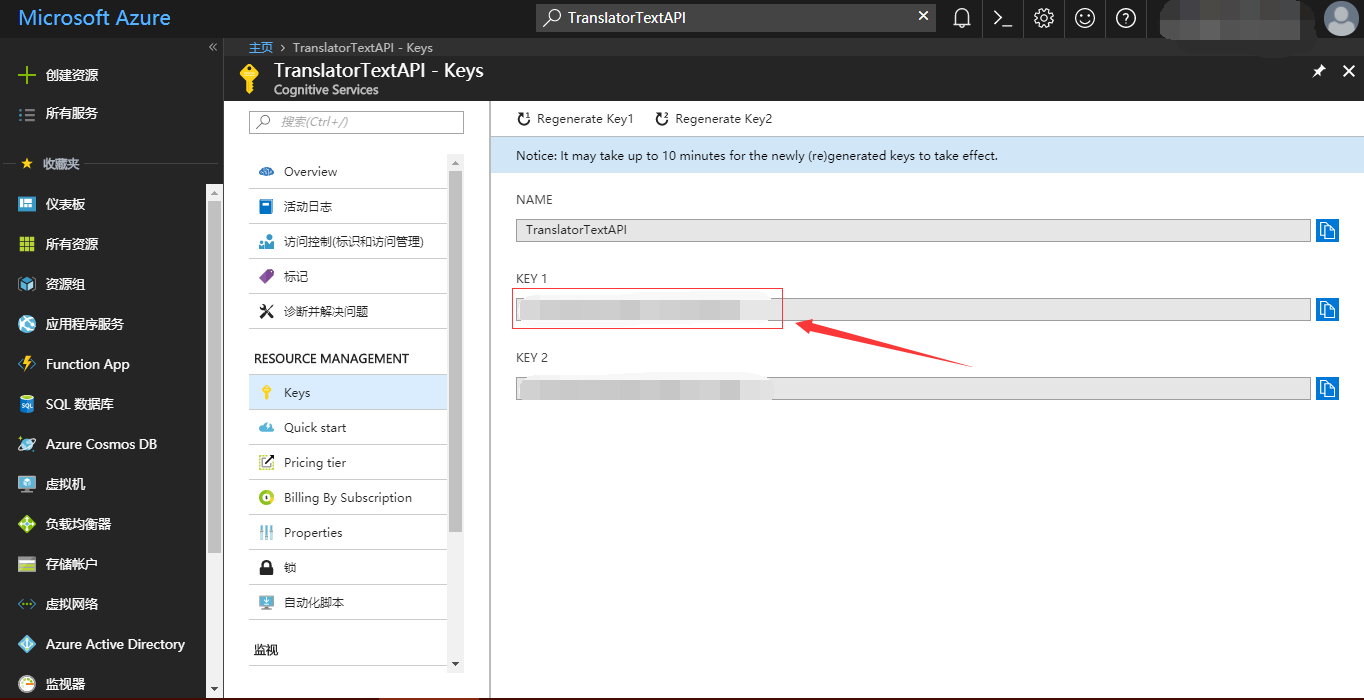
Now go back to Azure and search for the resource you just created

Select Keys in the menu, copy the string in KEY 1 into the Key field under SETTINGS in Microsoft Document Translator, and click Save. That's all the configuration you need!
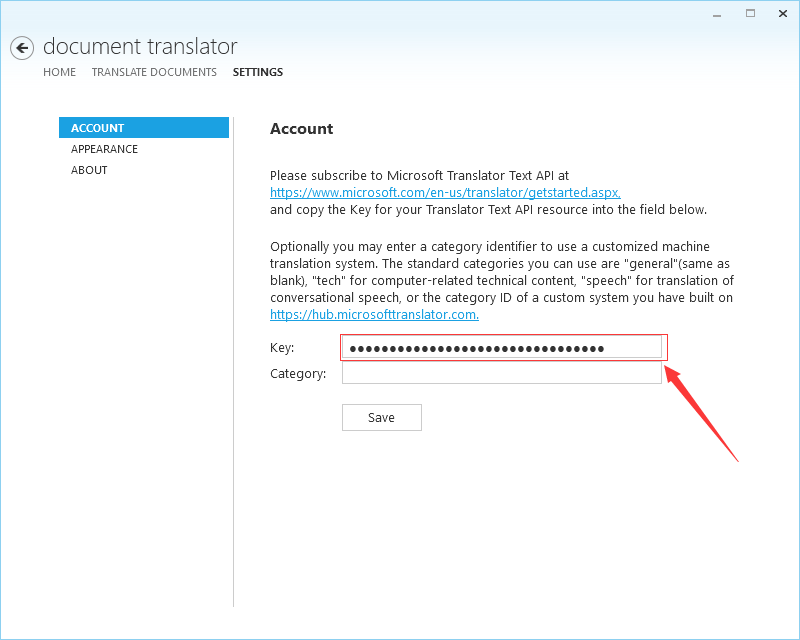
You can also fill in Category as needed to make your document translations more accurate.
Next, click Translate Document to add your document, choose the target language, and enjoy your translation journey!!